

How to Create an Effective Bitly Intro Slide for Presentations
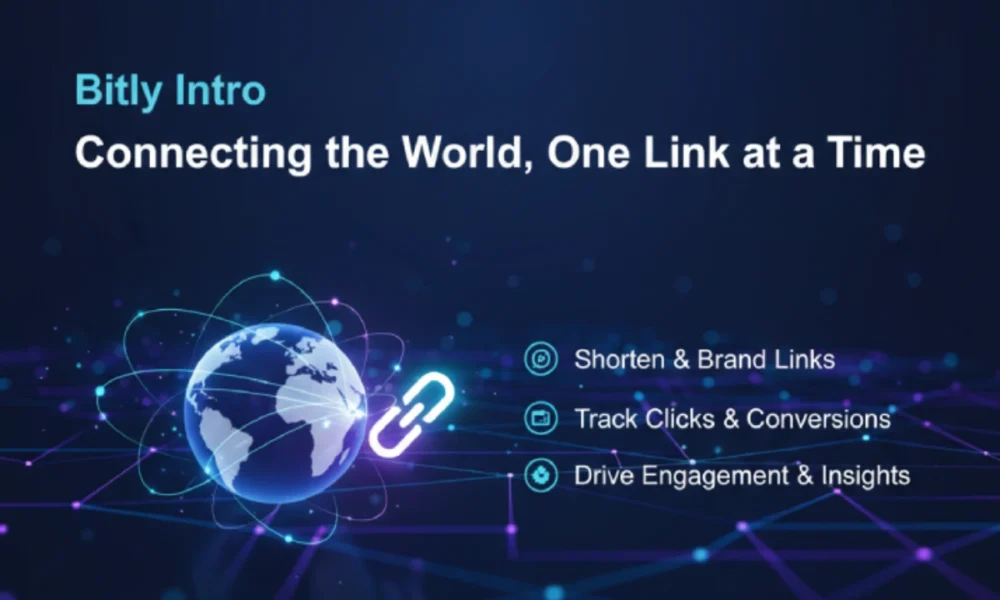
Bitly intro slides transform how presenters share resources while maintaining clean, professional designs. When you incorporate shortened links into your opening slides, you create seamless access to supplementary materials without cluttering your visuals.
Table Of Content
- Why Use Bitly Links in Your Introduction Slides
- Creating Your First Bitly Intro Slide
- Advanced Link Strategies for Presentations
- Optimizing Slide Design with Shortened Links
- Common Implementation Mistakes to Avoid
- Tracking and Improving Performance
- When to Use Bitly Links in Presentations
- Final Considerations
This guide shows you how to create effective presentation introductions using Bitly’s link-sharing capabilities, complete with tracking insights and design strategies.
Why Use Bitly Links in Your Introduction Slides
Shortened links solve a persistent presentation problem: how to share resources without overwhelming your audience with long, unwieldy URLs. You gain immediate advantages when you integrate Bitly into your opening slides.
First, you maintain visual clarity. A link like “bit.ly/intro-resources” takes minimal space compared to a full URL that wraps across multiple lines. Your slide stays focused on your message rather than technical details.
Second, you access powerful analytics. Bitly tracks exactly how many viewers clicked each link, when they accessed resources, and what devices they used. This data helps you refine future presentations based on actual audience behavior.
Third, you enhance mobile accessibility. Shortened links are easier to type on smartphones, and you can generate QR codes that let audience members scan and access resources instantly during live presentations.
Creating Your First Bitly Intro Slide
Start by designing your introduction slide with clear, engaging content. You’ll strategically place shortened links where they enhance rather than distract from your core message.
Create your Bitly account at bitly.com if you haven’t already. The free tier provides link shortening and basic analytics, while paid plans offer custom domains and advanced tracking features.
Identify key resources you want to share. These might include handouts, supplementary reading, portfolio examples, or contact information. Limit yourself to 3-4 links maximum to avoid overwhelming your audience.
Generate shortened links by pasting your full URLs into Bitly’s dashboard. You can customize the back-half of each link to make it memorable—for example, “bit.ly/q4-results” instead of a random string of characters.
Incorporate links into your design by placing them in high-visibility areas without cluttering your layout. Use contrasting colors that make links stand out while maintaining your overall aesthetic.
Test every link before your presentation. Click through to verify each one works correctly and doesn’t require special permissions your audience might not have.
Advanced Link Strategies for Presentations
Once you’ve mastered basic implementation, you can explore techniques that maximize engagement and professionalism.
Custom branded links replace the standard bit.ly domain with your company’s branding. Instead of “bit.ly/intro,” you might use “yourbrand.link/intro.” This reinforces your identity and builds trust with your audience. Note that custom domains require a paid Bitly plan.
QR code integration works exceptionally well for in-person presentations. Generate a QR code for your most important resource and place it prominently on your intro slide. Audience members can scan with their smartphones and access materials immediately without typing anything.
Link bundling through Bitly’s campaigns feature lets you group related links and track them collectively. If you’re sharing multiple resources about a single topic, you can analyze their combined performance.
UTM parameters can be added to your shortened links for deeper analytics in Google Analytics or other tracking platforms. This shows you not just who clicked, but how they engaged with your content afterward.
Optimizing Slide Design with Shortened Links
Your introduction slide should balance visual appeal with functional access to resources. Strategic design choices make your links effective without compromising aesthetics.
Place your most important link in the prime visual area—typically the center-right or bottom-center of your slide. This catches attention naturally as viewers scan your content.
Use typography hierarchy to distinguish links from other text. Make them slightly larger or bolder than body text, but smaller than your main heading. This signals their importance without dominating the slide.
Consider subtle animation if your presentation software supports it. Having links fade in after your main message appears draws attention at the right moment without creating distraction.
Provide context for each link with a brief descriptor. Instead of just displaying “bit.ly/resources,” add a line like “Download the full toolkit: bit.ly/resources.” This clarity increases click-through rates.
Common Implementation Mistakes to Avoid
Even experienced presenters make errors that reduce the effectiveness of their shortened links.
Overloading your introduction with too many links dilutes your message. If you need to share extensive resources, consider creating one master link that leads to a landing page with everything organized clearly.
Failing to explain resources leaves audience members guessing. Take 10 seconds to verbally mention what each link contains and why it’s valuable. This small investment dramatically increases engagement.
Ignoring link expiration can create problems. Free Bitly links don’t expire, but if you use other shortening services, verify that your links will remain active. Nothing undermines credibility faster than dead links.
Neglecting mobile optimization means you miss a significant portion of your audience. Always preview how your links appear on smartphone screens and ensure QR codes are large enough to scan from several feet away.
Using generic link names wastes an opportunity for clarity. “bit.ly/xyz123” tells your audience nothing, while “bit.ly/case-studies” immediately communicates value.
Tracking and Improving Performance
The analytics capabilities of Bitly transform your introduction slide from static information into a learning tool.
Check your click metrics after each presentation to understand which resources resonated most. If your case study link received 80% of clicks while your pricing link got only 5%, you’ve learned something valuable about your audience’s priorities.
Compare click timing to identify engagement patterns. Links clicked during your presentation indicate strong immediate interest, while those clicked hours or days later suggest slower-burn value that might warrant different positioning.
Monitor device data to optimize future presentations. If 70% of clicks come from mobile devices, ensure all your linked resources are mobile-friendly and consider making QR codes more prominent.
Track geographic data when presenting to distributed audiences via webinar. This reveals which regions engaged most strongly and might inform future targeting strategies.
When to Use Bitly Links in Presentations
This technique works best in specific presentation contexts where resource sharing enhances rather than detracts from your message.
Educational presentations benefit significantly because you can provide depth without derailing your core narrative. Share reading lists, tool recommendations, or assignment details through clean links while keeping your actual slides focused.
Sales and marketing pitches use shortened links to provide case studies, testimonials, and detailed specifications without cluttering your pitch. Prospects can explore at their own pace while you maintain narrative control.
Conference talks and webinars leverage Bitly links to share slides, contact information, and relevant resources with large audiences who can’t easily ask for materials during the presentation.
Internal team presentations track which resources team members actually use, helping you refine communication strategies and identify knowledge gaps.
Final Considerations
Incorporating Bitly links into your introduction slides enhances professionalism while providing valuable audience insights. You create cleaner designs, easier resource access, and actionable analytics that improve future presentations.
Start with one or two carefully chosen links in your next presentation. Test the approach, review your analytics, and refine your strategy based on actual results rather than assumptions.
The most effective intro slides balance visual clarity with functional value. Your shortened links should enhance your message, never distract from it.