

Baimoqi Car Digital Clock Manual: Setup, Features & Troubleshooting
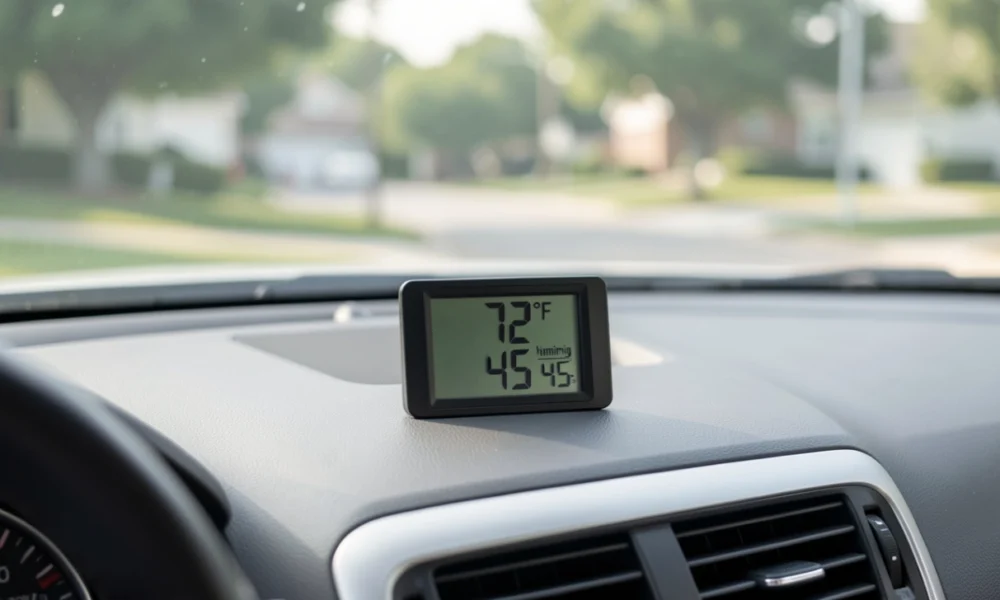
A reliable dashboard clock serves a practical purpose: it allows drivers to check the time without reaching for a phone, supporting safer driving habits. The Baimoqi car digital clock extends beyond basic timekeeping by integrating interior temperature and humidity monitoring.
Table Of Content
- Product Overview
- Step-by-Step Installation Guide
- Setting Up Your Baimoqi Digital Clock
- Features and Benefits
- 1. Temperature Monitoring
- 2. Humidity Tracking
- 3. Rechargeable Battery
- 5 Essential Maintenance and Care Tips
- 1. Clean the Display Regularly
- 2. Maintain Battery Health
- 3. Perform Seasonal Checks
- 4. Manage Sun Exposure
- 5. Reconfigure After Power Loss
- Troubleshooting & FAQs
- 1. Clock Shows Incorrect Time
- 2. Display is Dim, Flickering, or Blank
- 3. Temperature or Humidity Readings Seem Inaccurate
- 4. Clock Does Not Save Settings
- Conclusion
This guide provides clear instructions for installing, configuring, and maintaining your Baimoqi clock. It also includes troubleshooting steps for common issues to help you get the most out of the device.
Product Overview
The Baimoqi car digital clock is a compact dashboard accessory designed to display time, interior temperature, and humidity levels. It features a digital LCD screen and is powered by an internal rechargeable battery, reducing the need for frequent battery replacements.
The device is built for straightforward operation, with tactile buttons for adjusting settings. It is intended to be mounted on a dashboard or center console using the provided adhesive pad.
Step-by-Step Installation Guide
Proper installation ensures the clock remains secure and the sensors function accurately. Follow these steps to mount the device correctly.
- Select the Mounting Location: Choose a flat area on the dashboard or center console. The position should be visible to the driver without obstructing the view of the road. Avoid placing it directly in front of air vents or where it will be in constant direct sunlight.
- Prepare the Surface: Clean the chosen spot thoroughly. Use an alcohol wipe or a mild cleaner to remove dust, oil, and any residue from protectants. The surface must be clean and dry for the adhesive to bond effectively.
- Prepare the Adhesive: The clock typically comes with a piece of protective film over the 3M adhesive backing on the mount or the device itself. Peel this film off just before attaching.
- Attach the Clock: Position the clock carefully and press it firmly against the dashboard. Apply steady pressure for at least 30 seconds to ensure a strong bond. If your model uses a separate mounting bracket, attach the bracket first, then snap the clock into place.
- Angle for Visibility: Before finalizing the pressure, angle the clock slightly toward the driver’s seating position for optimal viewing.
If your dashboard has a textured or porous surface, use the included smooth mounting pad first. Apply the pad to the dashboard, then attach the clock to the pad. This creates a stable surface for the adhesive.
Setting Up Your Baimoqi Digital Clock
Once mounted, you will need to configure the time, date, and display preferences. The general process is as follows, though minor variations may exist between different models.
- Power On: If the device does not turn on automatically, press and hold the SET button for approximately 3 seconds until the display activates and begins to flash.
- Set the Time:
- With the display flashing, use the + (plus) and – (minus) buttons to adjust the hour.
- Press the SET button again to move to the minutes.
- Use the + and – buttons to adjust the minutes.
- Set the Date:
- Press SET again to move to the date setting (usually in MM/DD format).
- Use the + and – buttons to adjust the month, then press SET to adjust the day.
- Configure Preferences:
- Continue pressing SET to cycle through additional options, such as switching between 12-hour and 24-hour time formats.
- To change temperature units between Fahrenheit (°F) and Celsius (°C), press the MODE button until the temperature reading flashes, then use the + button to toggle between units.
- Save Settings: Press and hold the SET button for 3 seconds to save all changes and exit settings mode. Alternatively, the device will automatically save and exit after approximately 10 seconds of inactivity.
Features and Benefits
Beyond telling time, the Baimoqi clock provides environmental data for your vehicle’s interior.
1. Temperature Monitoring
A built-in thermistor measures the cabin temperature. The sensor updates the reading approximately every 30 seconds, providing current thermal conditions. This information helps you manage climate control settings for comfort, particularly during extreme weather.
2. Humidity Tracking
The integrated hygrometer measures the relative humidity inside the car. Monitoring humidity levels can help you anticipate and prevent window fogging. Maintaining interior humidity in a range of 40–60% can also contribute to a more comfortable cabin environment and may help reduce allergen circulation.
3. Rechargeable Battery
The device contains a rechargeable lithium-polymer battery.
- Battery Life: A full charge can typically power the clock for several weeks to months, depending on usage and ambient temperature.
- Charging: The clock is recharged using a standard USB cable (usually Micro-USB or USB-C, depending on the model). Plug the cable into a car USB adapter or any standard USB power source.
- Low Battery Indicator: The display will show a battery icon when the charge is low, alerting you when it is time to recharge.
5 Essential Maintenance and Care Tips
Routine care will help maintain the clock’s performance and longevity.
1. Clean the Display Regularly
- Power off the device before cleaning by holding the power button for 3 seconds.
- Wipe the screen gently with a soft, slightly damp microfiber cloth.
- Do not use paper towels, harsh chemicals, or abrasive cleaners, as these can scratch or damage the LCD.
2. Maintain Battery Health
- To preserve battery capacity, allow the device to fully discharge once every two to three months before performing a full recharge.
- Avoid leaving the clock in extreme heat for prolonged periods, as this can degrade battery performance.
- Use the original charging cable or a high-quality alternative to ensure correct power delivery.
3. Perform Seasonal Checks
- After daylight saving time changes, verify that the displayed time is correct and adjust if necessary.
- Inspect the small sensor ports (usually located on the sides or back of the unit) for dust or debris and clean them gently with a dry, soft brush.
- Check that the adhesive mount remains secure, as extreme temperature fluctuations can affect adhesion over time.
4. Manage Sun Exposure
- Position the clock to minimize direct, prolonged sunlight when possible. Continuous UV exposure can fade the display and potentially affect internal components.
- A shaded mounting location also helps ensure temperature readings reflect the general cabin environment, not just a sun-heated spot on the dashboard.
5. Reconfigure After Power Loss
- If your vehicle’s battery is disconnected or completely drained, the clock’s internal memory may reset.
- After restoring vehicle power, check the clock’s time, date, and unit preferences and reconfigure them as needed.
Troubleshooting & FAQs
If you encounter issues with your Baimoqi clock, the following steps can help resolve common problems.
1. Clock Shows Incorrect Time
- Reset the Device: Perform a factory reset by pressing and holding both the SET and MODE buttons simultaneously for about 5 seconds. You will need to reconfigure the settings afterward.
- Recharge the Battery: A low battery can cause timing errors. Connect the clock to a USB charger and allow it to charge fully.
- Relocate the Device: Strong electromagnetic interference from other electronics can, in rare cases, affect digital clocks. Try moving the clock to a different spot on the dashboard.
2. Display is Dim, Flickering, or Blank
- Adjust Brightness: Press the LIGHT button (if available) repeatedly to cycle through brightness levels.
- Charge the Battery: Connect the USB charging cable. A depleted battery is a common cause of display issues.
- Allow Temperature Normalization: Extreme cold or heat can temporarily cause LCD screens to react slowly or appear faint. The display should return to normal once the cabin temperature moderates.
3. Temperature or Humidity Readings Seem Inaccurate
- Allow Acclimation Time: After first installing the clock or entering the car, give the sensors 15–20 minutes to adjust to the current cabin temperature.
- Check Sensor Placement: Ensure the clock is not mounted in direct sunlight or directly next to an air vent, as these conditions will cause localized readings that do not reflect the overall cabin environment.
- Check for Calibration (If Supported): Some models allow manual offset calibration. If available, hold the MODE button and use + or – to adjust the reading up or down.
4. Clock Does Not Save Settings
- Fully Charge the Device: A critically low battery can prevent the device from retaining settings in its memory. Charge the unit completely.
- Perform a Hard Reset: Press and hold the SET and MODE buttons for 10 seconds to clear the internal memory, then set the time and date again.
- Contact Support: If the problem persists, the internal memory battery may be failing. Refer to the product packaging or receipt for Baimoqi customer support contact information.
Conclusion
The Baimoqi car digital clock provides time, temperature, and humidity information in a single, convenient dashboard display. Following the installation and setup instructions will ensure it functions correctly from the start. Adhering to the simple maintenance tips outlined above can help extend its useful life. If you encounter problems, the troubleshooting section addresses the most frequently reported issues.
Different versions of the Baimoqi clock may have slight variations in button layout or included features. For issues not covered in this guide, refer to the documentation that came with your specific model.